
Photo Circle Stop Challenge Video Maker – Create Viral Vertical Reels in Minutes
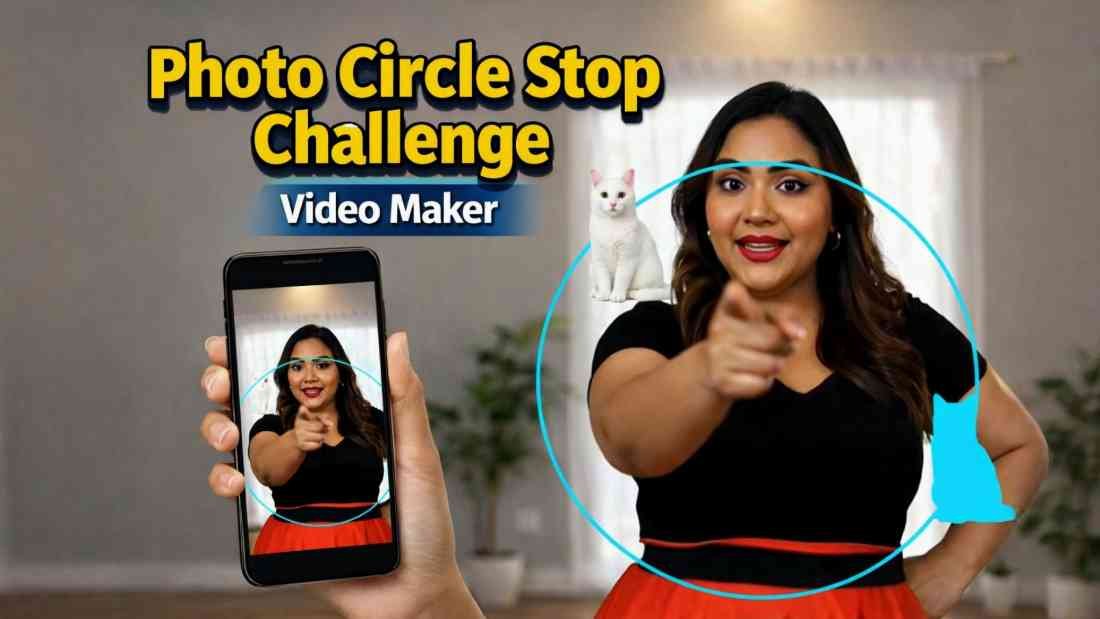
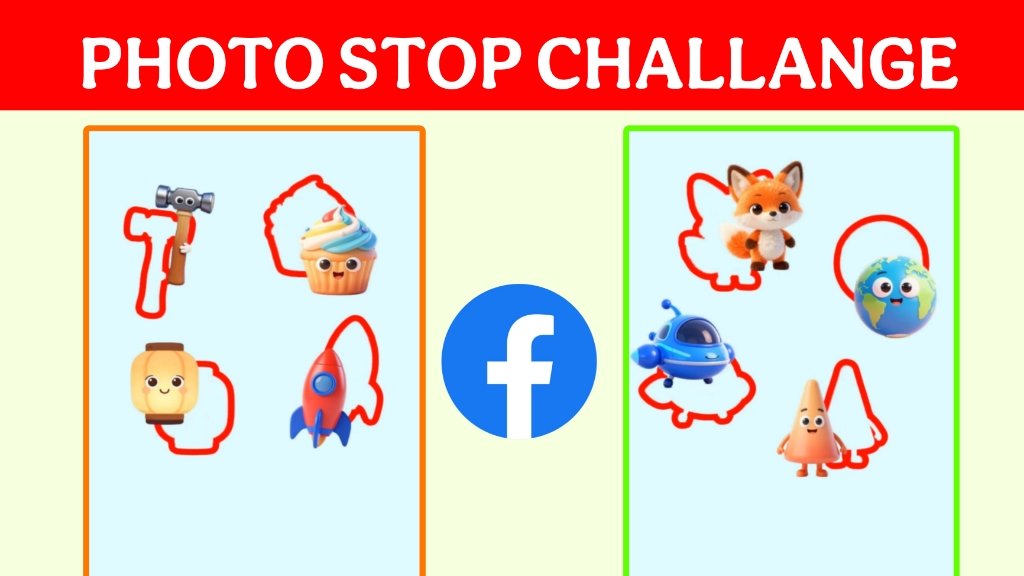
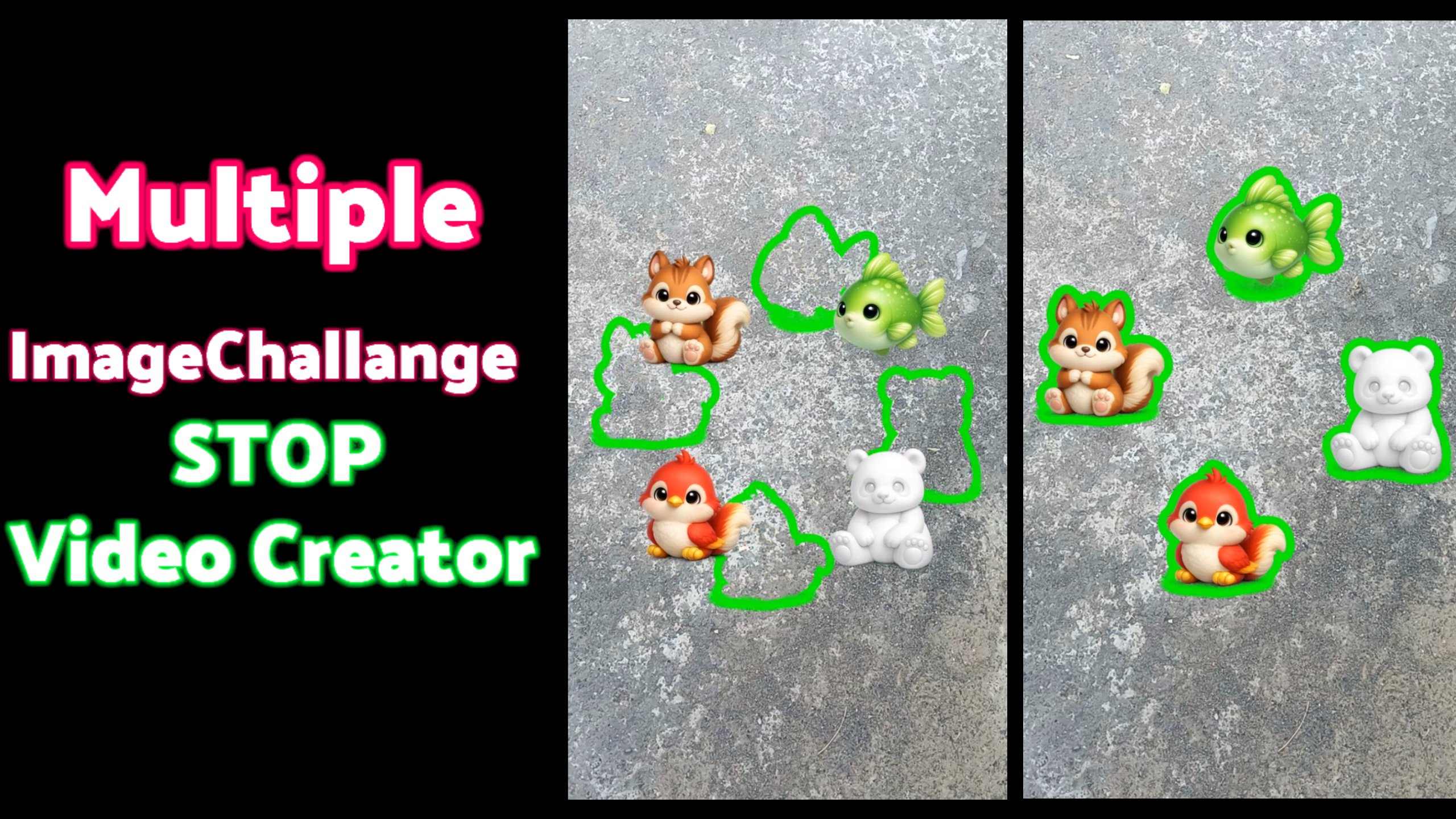
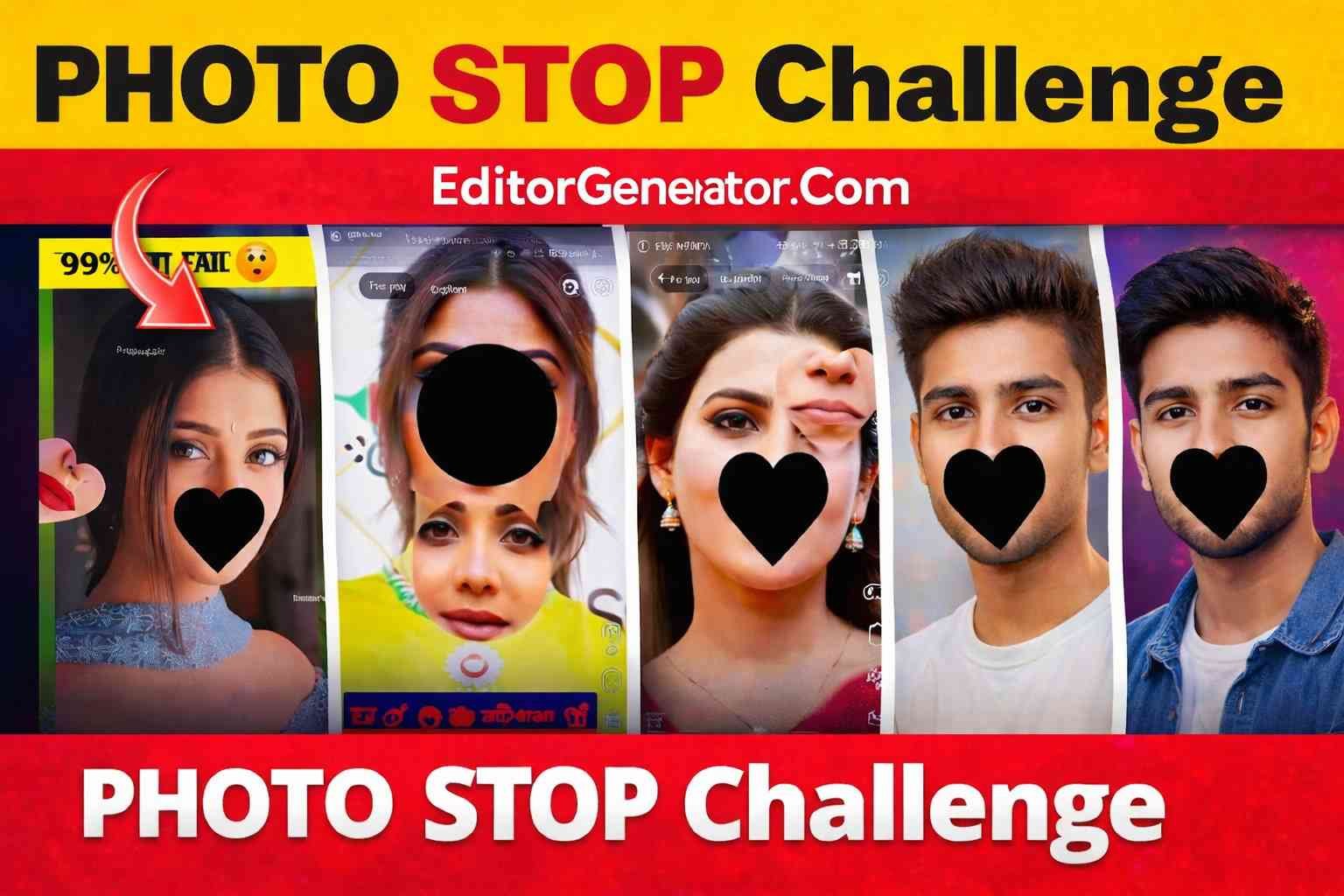
If you’ve seen those viral Instagram Reels / Facebook Shorts where a photo moves around a glowing circle and suddenly “stops” at a random point, you already know how addictive this trend is. Earlier, making this type of video was difficult and time-consuming. But now, with our Photo Circle Stop Challenge Video Maker, you can create the same style of vertical video in just a few minutes—directly from your browser.
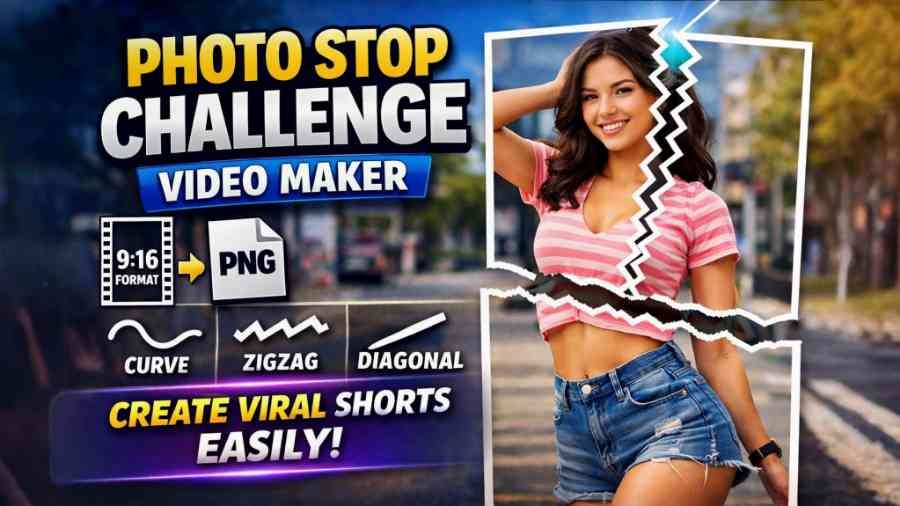
This tool creates a vertical (9:16) video that looks perfect for Instagram Reels, Facebook Reels, YouTube Shorts, and other short-video platforms.
What You Can Create With This Tool
- Vertical viral challenge videos (9:16 format)
- Photo moving around a circle with a ring effect
- Random stop effect (challenge feel)
- Fast / slow speed control for different styles
- Custom ring color (matches your branding)
What You Need Before Starting
- 1 Vertical video (any MP4 video you want as the background)
- 1 Transparent PNG (your photo cutout, logo, product, or character)
Tip: Transparent PNG gives the best result because only your subject will move while the background stays clean and professional.
Step-by-Step: How to Make the Video
Step 1: Start & Load App
Open the tool and click “Start & Load App”. This loads the editor engine so your video can be created inside the browser.
Step 2: Select Video
Click “Step 1: Select Video” and choose your vertical video file. This video will become the background of your final output.
Step 3: Select Transparent PNG
Click “Step 2: Select Transparent PNG” and upload your transparent PNG (photo cutout / logo / character). This image will rotate around the circle.
Step 4: Adjust Settings
Now you can customize the look of your final video using these settings:
- Ring Margin – Controls how far the ring stays from the edges. Default is 5%.
- Ring Width – Controls the thickness of the ring. Default is thin. (Internally it stays even thinner for a clean look.)
- Ring + Clone Color – Pick the ring color. This also applies to the “clone” effect color so everything matches.
- Image Size – Resize the PNG that moves around the circle. Default is smaller and optimized for viral reels.
- Rotation Speed – Choose how fast the PNG rotates:
- Ultra Fast (Default)
- Faster Level 1
- Faster Level 2
- Fast
- Mid Fast
- Normal
- Slow
Step 5: Click Create
After selecting files and setting options, click “Create”. The tool will start rendering your video and you’ll see a progress bar.
Step 6: Preview & Download
Once rendering is complete, your final video will appear in the preview player. Click Download to save the MP4 file.
Best Settings for Viral Reels (Recommended)
- Ring Margin: 5% to 8%
- Ring Width: Thin (clean modern look)
- Image Size: 18% to 28% (depends on photo)
- Speed: Ultra Fast or Faster Level 1 (more engaging)
- Ring Color: Bright colors like neon blue, red, yellow (high attention)
Why This Video Format Goes Viral?
This style works because it creates curiosity. People want to see where the moving photo stops. It feels like a “challenge” and that increases watch time, replays, and comments. Higher watch time usually means better reach on Instagram and Facebook.
Pro Tips to Get More Views
- Use a trendy background video (party, street, gym, etc.)
- Keep the moving PNG subject clear and high quality
- Use bright ring colors for more attention
- Add a short caption: “Where will it stop?” or “Try your luck!”
- Post as Reel/Short with viral hashtags
The Photo Circle Stop Challenge Video Maker makes it easy to create professional-looking viral reels without any complicated editing software. Just upload your video, upload your transparent PNG, adjust the ring + speed settings, click create, and download your vertical MP4 ready for Instagram/Facebook/Shorts.
If you want to create viral content regularly, this tool is perfect because it saves time and gives you a trending style video in minutes.